Chapter 7Sound: one mic or a mixer
The Desk tab sets up your sound. First choose who mixes the show: CurryCaster II, or your own mixing desk.
ONE MIC: CurryCaster II mixes
Best with one USB microphone and headphones. Your microphone, the clips, the carts and the guests are mixed in the app. Plug your headphones into the microphone (or into your audio interface) to hear yourself with no delay. See Read this first: how you hear yourself.
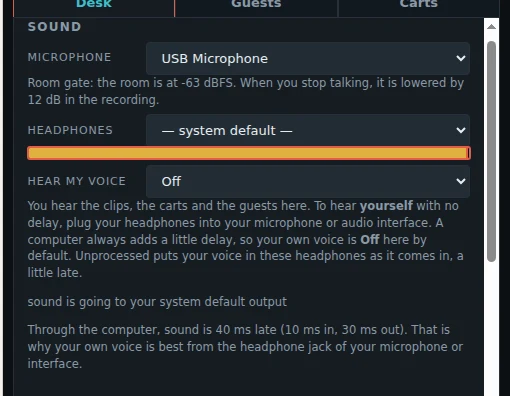
- Microphone: the microphone you speak into.
- Headphones: where you listen. You hear the clips, the carts and the guests, with no processing. The recording and the guests get the processed sound.
- Hear my voice: Off is the default. A computer always adds a little delay, so to hear yourself with no delay, plug your headphones into your microphone or audio interface.
- Unprocessed puts your voice in these headphones as it comes in, a little late.
- Processed (delayed) puts your voice in the headphones as the recording has it: filtered and compressed. It is a good way to check how you sound, but it is late. Choose Off for the show.
- The note under it says how late the computer is. Even a few milliseconds of your own voice sounds wrong, so the headphone jack on your microphone or interface (with Off) is the right choice.
The room gate
In ONE MIC mode the microphone has a gentle gate that sets itself. There is nothing to set.

- It listens to the quietest moments of your microphone, the gaps between your words. That is the noise of your room. It keeps listening during the show, so it follows a room that changes.
- When you stop talking, it lowers the room by 12 dB. It never closes completely, so the room never sounds dead.
- It opens at once when you speak, and closes slowly, so the start and the end of your words are kept.
- The note under Microphone shows the room level. If the room is too loud, the note says so: move closer to the microphone, or make the room quieter.
- It is on the recording, the stream and the guests. It is not in your headphones, and not on the Mic track when you record separate tracks.
Channels
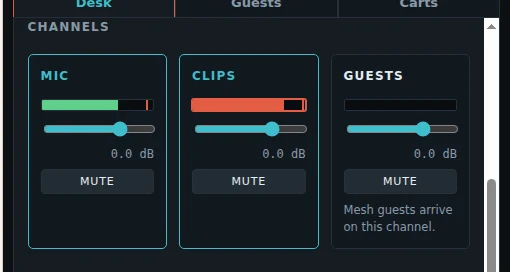
Each channel has a meter, a fader in dB and a MUTE button. CLIPS carries the players and the carts. GUESTS carries everyone in the guest room.
Buses
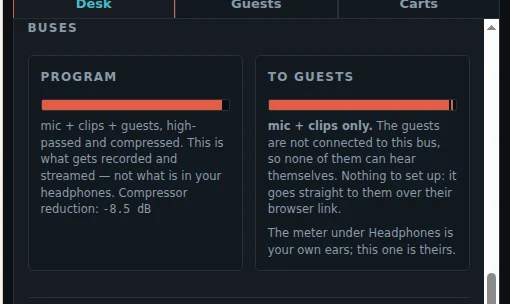
- PROGRAM: mic, clips and guests, high-passed and compressed. This is what is recorded and streamed.
- TO GUESTS: mic and clips only. The guests are not on this bus, so no guest hears themselves.
MIXER: your mixing desk mixes
Click MIXER in the top bar when your microphones are on a USB mixer.

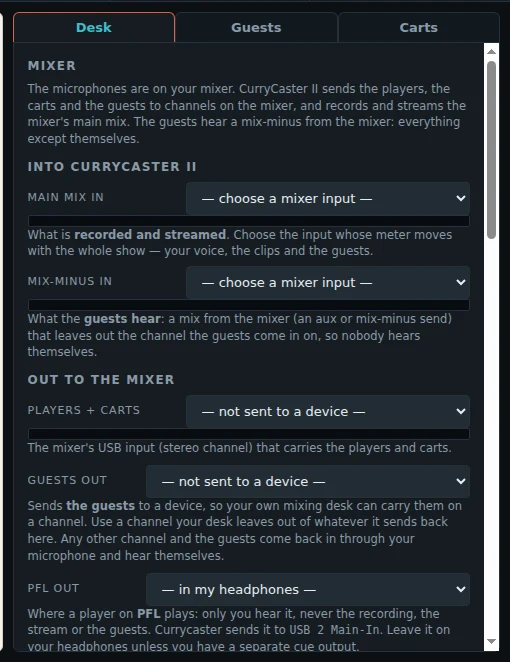
| Main mix in | The mixer's whole show. This is what is recorded and streamed. |
|---|---|
| Mix-minus in | A mix from the mixer without the guests' channel (an aux or mix-minus send). This is what the guests hear. |
| Players + carts out | The mixer channel (USB, stereo) that carries the players and carts. |
| Guests out | The mixer channel the guests come in on. |
| PFL out | Where a player on PFL plays: usually your headphones. |
Advanced: extra devices
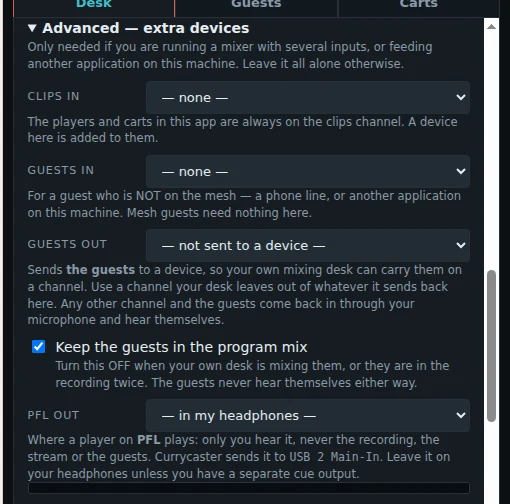
Only needed with a mixer that has many inputs, or when sound comes from another app on this computer. Leave it alone otherwise.
- Clips in: an extra device added to the clips channel.
- Guests in: a guest who is not in the guest room, for example a phone line.
- Guests out: sends the guests to a device, so your mixer can carry them on a channel.
- Keep the guests in the program mix: turn it off when your own mixer already has the guests, so they are not recorded twice.
- PFL out: where a player on PFL plays.
Press Save to keep your sound settings with the show.