Chapter 6The show outline
The outline holds your running order, notes and links. It reads and writes OPML, the standard outline format, so other outliners can open the same file.
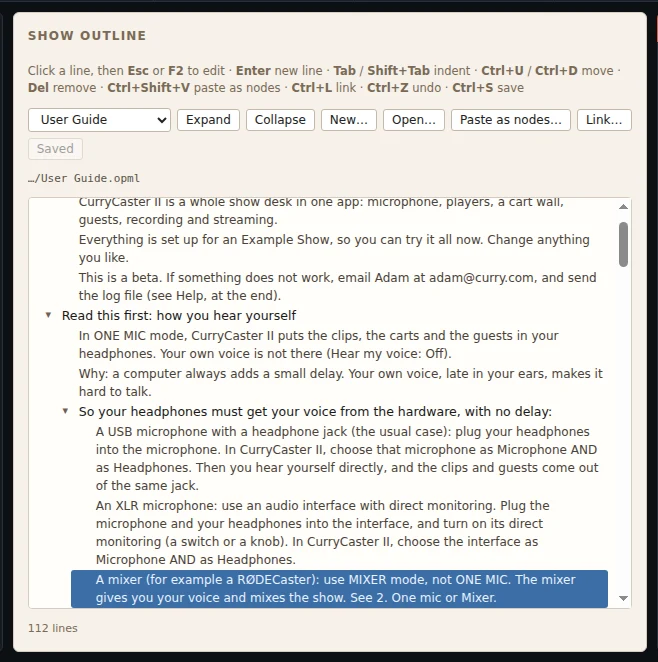
Move around with the arrow keys
Click a line to select it. Then use the keyboard:
| ↓ ↑ | Go to the next or previous line. |
|---|---|
| → | Open a closed line (show the lines under it). On an open line: go to the next line. |
| ← | Close an open line. On a closed line: go up to the line it is under. |
| Click the ▸ arrow | Open or close that line. |
| Expand / Collapse | Open or close every line at once. |
Write and change lines
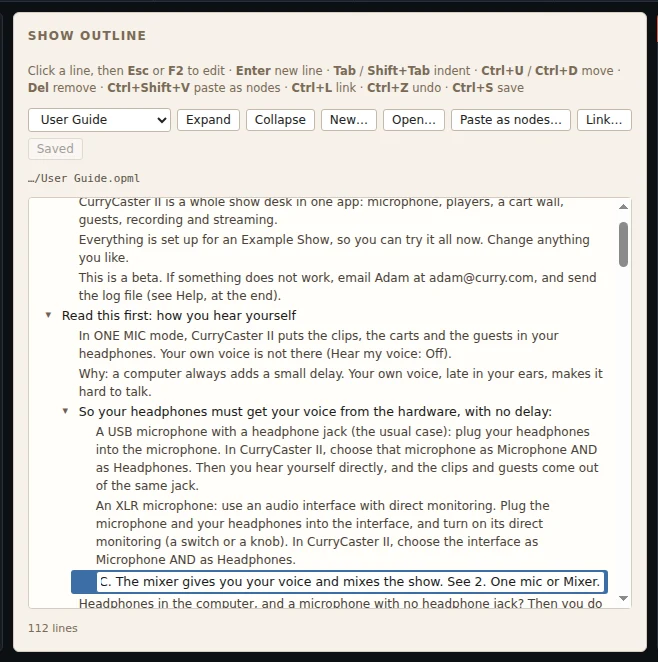
| F2 or Esc | Change the text of the selected line. Enter or Esc again keeps it. |
|---|---|
| Enter | A new line under the selected one. |
| Tab / Shift+Tab | Move the line in (under the line above) or out. |
| Ctrl+↑ / ↓ or Ctrl+U / D | Move the line up or down, with the lines under it. |
| Del | Remove the line. |
| Ctrl+C / X / V | Copy, cut and paste lines. |
| Ctrl+Shift+V | Paste text as lines: a blank line starts a new line, and the lines under the first go under it. |
| Ctrl+B / I | While you write: bold or italic. |
| Ctrl+Z / Ctrl+Shift+Z | Undo and redo. |
| Ctrl+S | Save the outline. |
On a Mac, use ⌘ where this says Ctrl.
Links
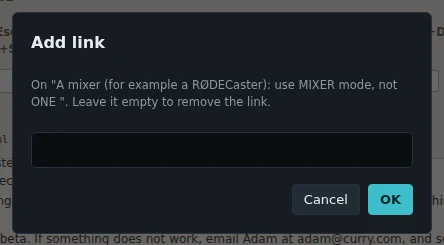
Select a line and press Ctrl+L (or the Link… button) to add, change or remove its link. Ctrl+Enter on a line with a link opens it in your browser.
Open, make and save outlines
- The list above the outline shows every outline in the show's folder, newest first.
- New… makes a new, empty outline and asks where to save it.
- Open… opens any .opml file on your computer.
- Save (or Ctrl+S) saves it. Saving the show saves the outline too, and the show remembers which outline was open.
- If the file was changed on disk after you opened it, CurryCaster II does not save over it. It asks: load the version on disk, or save yours over it.