Chapter 5The clip browser
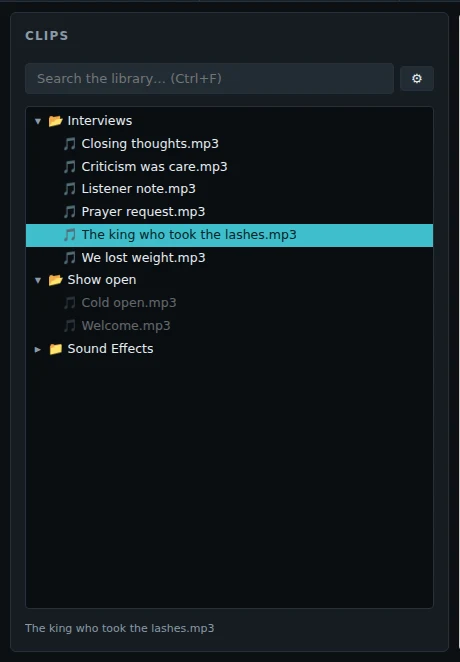
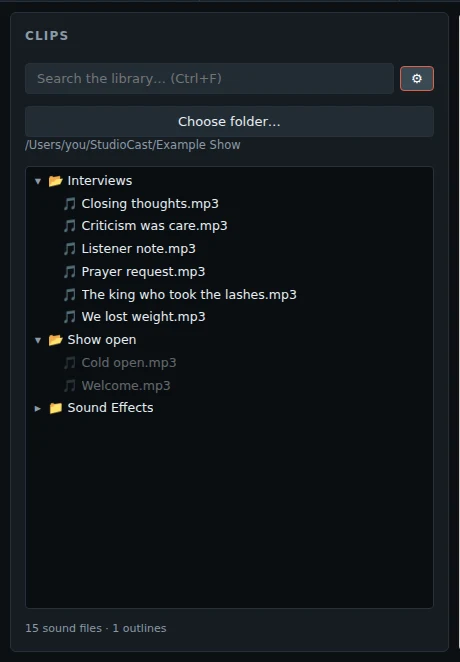
The clip browser shows the folder of your show, exactly as it is on your disk.
Find a clip
- Click a folder to open or close it.
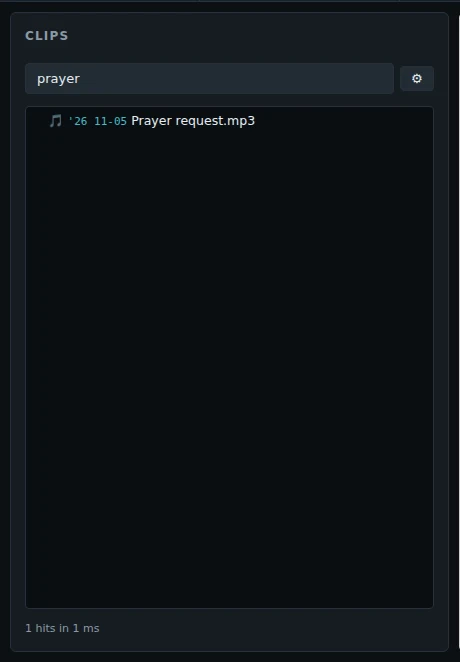
- Type in the search box (Ctrl+F). Search covers every sound file in the show's folder.
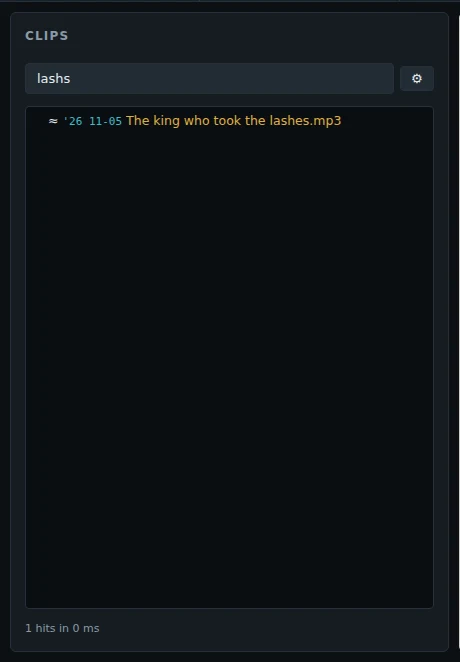
- Search forgives typing errors. A hit that is not exact shows a ≈ and a different colour.
Played clips are dimmed
A file that you PLAY on air turns grey. Loading it is not enough, and playing it on PFL does not count. A new show, or starting CurryCaster II again, clears it. Turn this off on the Desk tab, under Clips.
Focus on one folder
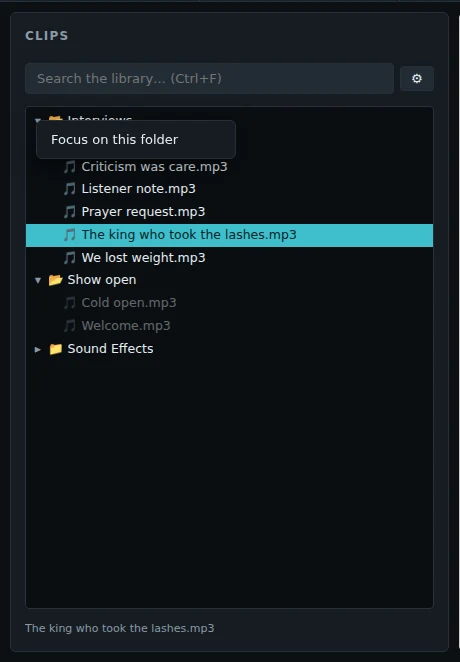
Right-click a folder and choose Focus on this folder. The browser then shows only that folder, and search still covers the whole show. Click ✕ on the focus bar to see everything again. The show remembers the focus when you save it.
Choose the show's folder
Click ⚙ next to the search box, then Choose folder…. Everything under that folder is browsed and searched.
New files that you add to the folder while the app runs appear by themselves, in a few seconds.
Formats: MP3, WAV, AIFF, FLAC, OGG, Opus, M4A (AAC and Apple Lossless), AAC, WMA and WebM.