Chapter 10Record
Press RECORD and the show is recorded: the PROGRAM bus, as a WAV file in your recordings folder.

- Press RECORD to start. Press it again to stop. It asks first, so a wrong click does not end your show.
- The recordings go to StudioCast in your home folder. Recordings in the top bar opens that folder.
Markers
Press ◆ MARK at any moment of the show. A box asks what it is. Type a word or two and press Enter.
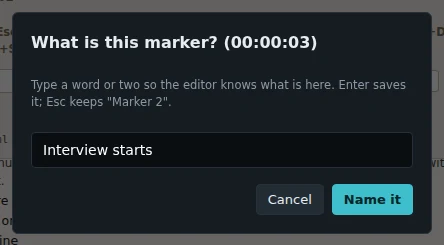
The markers come back in the editor, and become the chapters of your MP3. Every clip and cart that played is kept too, so you can find them in the editor.
Separate tracks
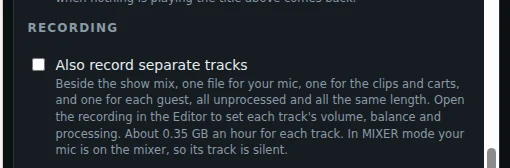
On the Desk tab, under Recording, tick Also record separate tracks. The show keeps this setting when you press Save. Next to the show mix, RECORD then writes one file for each source:
- Mic: your microphone, mono.
- Clips and carts: everything the players and the cart wall play, stereo.
- One file for each guest, mono, with the guest's name. A guest who joins late is silent until they join. A guest who leaves and comes back stays on the same track. There are tracks for up to 8 guests.
The tracks are unprocessed: the mic is without its filter, and each guest is without their gate, EQ and compressor. Your fader levels and mutes are kept, and what you say on talkback is not on the mic track. All tracks start with the show mix and are the same length, so they line up in any editor. They go in a folder beside the recording, for example show-2026-11-05-200000 tracks. Each track takes about 0.35 GB an hour (0.7 GB for the stereo clips track).
In MIXER mode your microphone goes into the mixer, so the mic track is silent. The clips and guest tracks still record.
Safe when something goes wrong
- If the app crashes, the desk starts again by itself, and the recording carries on in the same file. The gap is marked in it.
- If the computer crashes, the recording is safe up to that moment. The next start offers to carry on recording in it, or to leave it closed.
- If audio goes missing from the recording (for example the computer was overloaded), a red message says so, and the place is marked.
- Closing the window always asks first, and warns you when you are recording or streaming.