Chapter 9Guests
The guest room brings guests on the air from anywhere. A guest opens a link in a browser, on a computer or a phone. Nothing to install, no account to make. The guest room needs a subscription.
Open the room
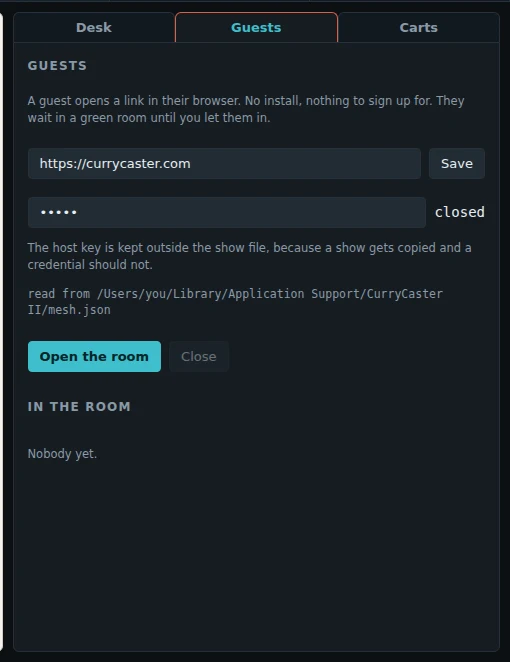
- Open the Guests tab.
- Press Open the room. Your switchboard and key are already filled in.
- Press Copy and send the link to your guest, by email or a message.
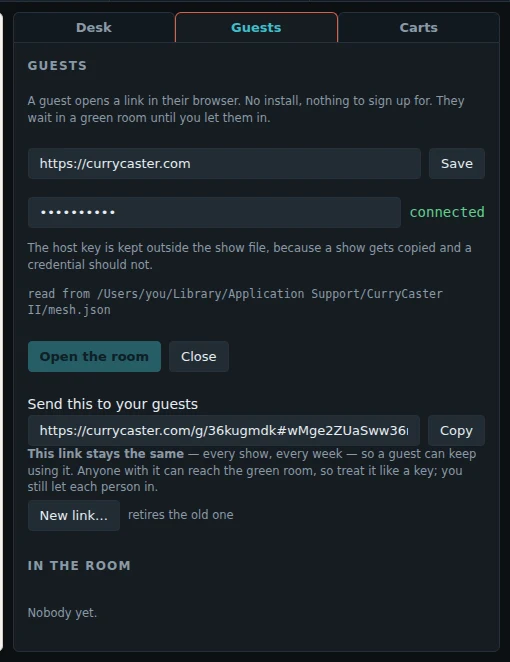
- Your link stays the same, every show and every week, so a regular guest can keep it.
- Anyone with the link can reach the green room, so treat it like a key. You still let each person in.
- New link… makes a new link. The old one stops working at once. Use it if the link got to the wrong people.
What the guest sees
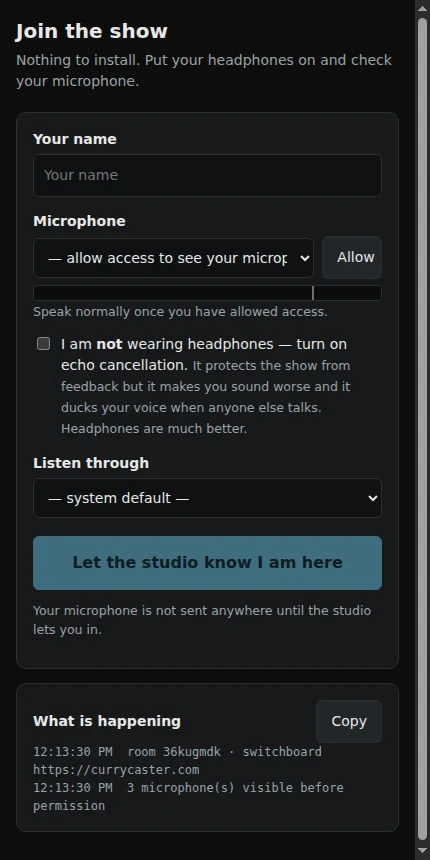
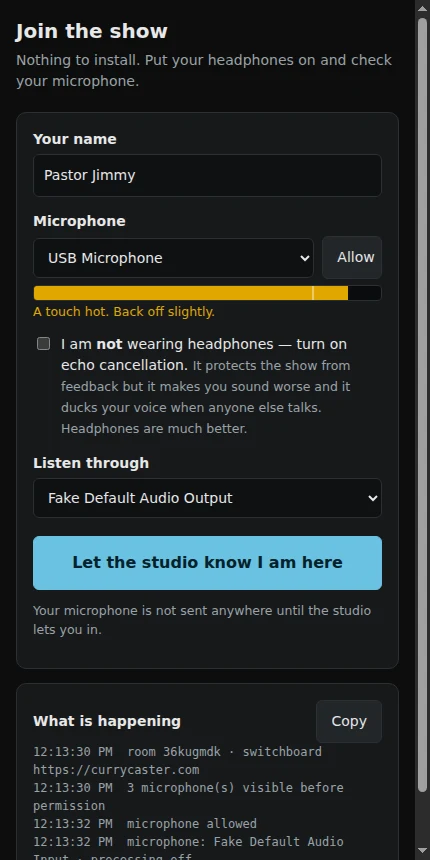
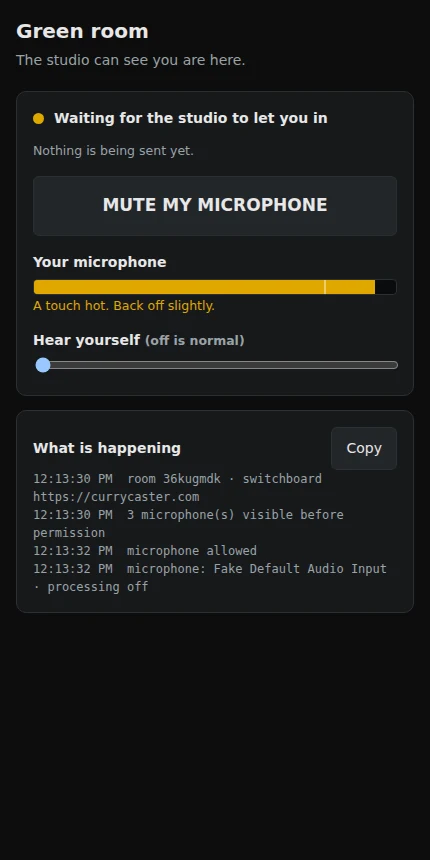
- The guest types a name, clicks Allow for the microphone and checks the meter.
- Headphones are best. Without them, the guest ticks "I am not wearing headphones", which turns on echo cancellation.
- Nothing of the guest goes anywhere until you let them in.
- The green room tells the guest where you are: The studio is open. The host has been told you are waiting., or The studio is not open yet. when your guest room is closed.
Waiting guests hear the show
In the Guests tab, under In the room, is the switch Waiting guests hear the show. It is off at first, and it is saved with your show.
- When it is on, a guest in the green room hears what your guests on the air hear: you, your clips and the other guests. It is like a radio station's off-air feed, so the guest can follow the show and come in on time.
- The guest's page shows a line called The show, with its own volume. On your desk, the guest's line says hearing the show.
- Nothing goes from the waiting guest to you or to your other guests. Their microphone is sent only when you let them in.
- Anyone with your guest link can listen while the switch is on. If the link got out to the wrong people, use New link first.
Let a guest in
A waiting guest shows on the Guests tab, and GUESTS on the on-air bar turns yellow.
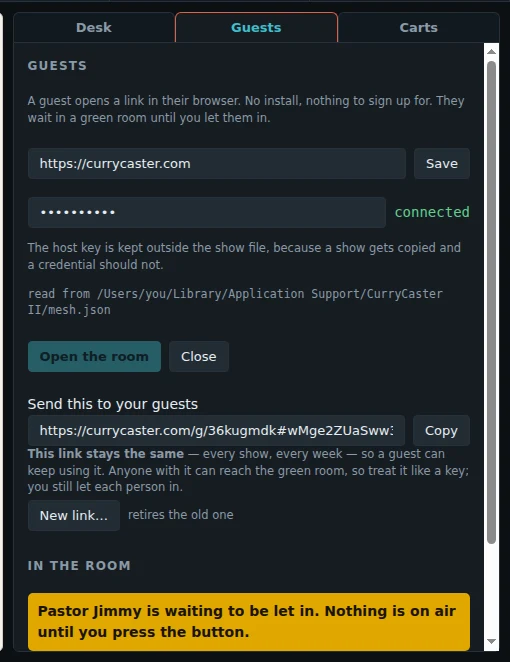
Press Let Pastor Jimmy in (the button has the guest's name). The guest's page then says You are on the show:
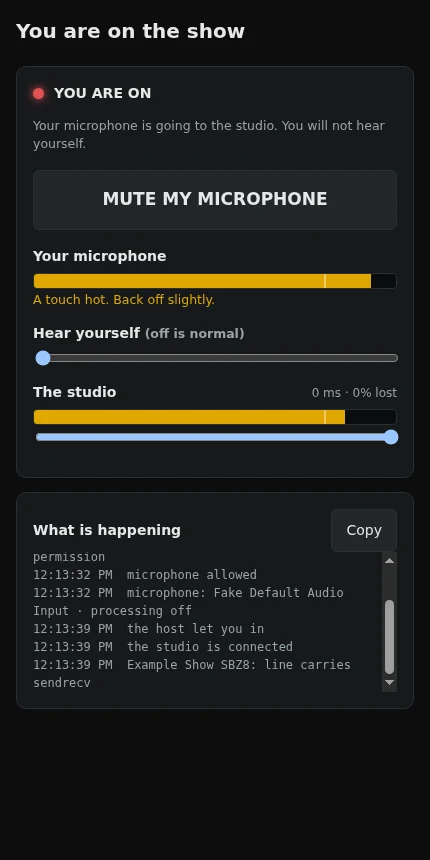
On the guest's page there is a big MUTE MY MICROPHONE button, the guest's own meter, a "Hear yourself" control, and a "What is happening" log the guest can copy and send you if something goes wrong.
Each guest's controls
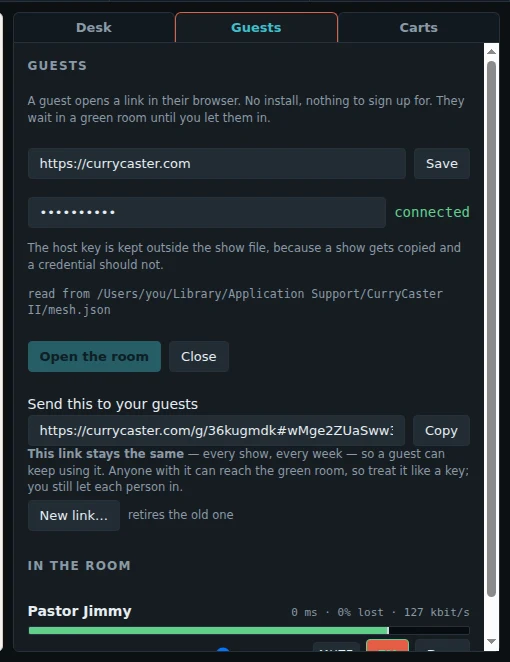
- The line shows the delay, lost packets and bitrate of the guest's connection.
- The fader is the guest's level. MUTE mutes the guest. Drop sends the guest out of the room.
- Everyone hears everyone, the clips and the carts, but never themselves.
Processing for each guest
Click FX on a guest's line. Each guest has a gentle noise gate, a 3-band EQ, a compressor and a limiter, with one on/off switch. So a laptop microphone and a studio microphone sit together in the mix.
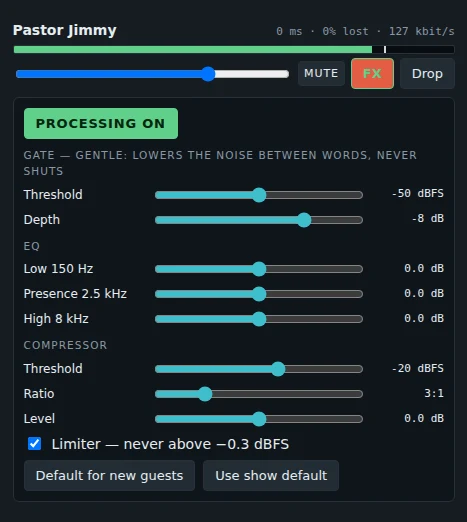
| PROCESSING ON | Turns all of it on or off, without a click in the sound. |
|---|---|
| Gate | Lowers the noise between words. It never shuts completely. Threshold and depth. |
| EQ | Low (150 Hz), presence (2.5 kHz) and high (8 kHz). |
| Compressor | Threshold, ratio and level. It evens out loud and quiet speech. |
| Limiter | Never lets the guest go above −0.3 dBFS. |
| Default for new guests | Makes these settings the start point for every new guest of this show. |
| Use show default | Puts this guest back to the show's default. |
Talkback
Hold TALKBACK on the on-air bar to talk to your guests off the air. While you hold it, the recording and the stream do not get your microphone.